A WordPress website infected with malware can exhibit various signs and symptoms. Detecting malware early is crucial to prevent potential damage to your website and its visitors. Here are some telltale signs that your WordPress website might be infected with malware:
Unexpected Behavior: If your website starts behaving strangely, such as loading slowly, redirecting to suspicious websites, or displaying incorrect content, it could indicate a malware infection.
Unusual Traffic Patterns: A sudden increase in traffic, especially if it’s coming from unusual or unfamiliar sources, might indicate a malware infection. Malware can sometimes be used to drive fake traffic or perform malicious actions.
Changes in Site Content: If you notice new, unauthorized, or unfamiliar content on your website, such as spammy links, hidden text, or injected ads, it’s a sign that your site might be compromised.
Search Engine Warnings: If your website suddenly disappears from search engine results or is flagged with warnings like “This site may be hacked” in search results, it’s a strong indication of malware.
Security Plugin Alerts: If you’re using a security plugin like Wordfence or Sucuri, they might provide alerts about suspicious activity, malware signatures, or changes to core files.
Frequent Crashes or Errors: If your website experiences frequent crashes, errors, or downtime that can’t be attributed to regular maintenance or updates, malware might be causing instability.
Unexpected Admin Accounts: Check your WordPress admin panel for any unfamiliar admin accounts. Hackers sometimes create these accounts to maintain control over your website.
Suspicious File Changes: Regularly monitor your website’s core files, theme files, and plugins for any unauthorized changes or additions. Malware often involves modifying these files.
Phishing Redirects: If your visitors are being redirected to phishing or malicious websites, your site might be compromised. This can severely damage your website’s reputation.
Increased Resource Usage: Malware can cause your server’s resources (CPU, memory, bandwidth) to spike due to malicious activities. Keep an eye on your hosting account’s resource usage.
Spam Emails: If your website is sending out spam emails without your knowledge, it’s a sign of a compromise. Malware can be used to send spam from your server.
Blacklist Warnings: Google and other security services maintain blacklists of websites known to distribute malware. If your site is blacklisted, users might be warned before visiting.
If you suspect your WordPress website has been compromised, it’s important to take action promptly:
Isolate the Website: Take your website offline temporarily to prevent further damage and protect your visitors.
Scan with Security Plugins: Use security plugins to scan your website for malware and vulnerabilities. Many plugins can help you identify and clean malware infections.
Update and Remove: Update WordPress, themes, and plugins to their latest versions. Remove any unauthorized or suspicious code or files.
Change Credentials: Change all passwords and authentication keys, including for your hosting, WordPress admin accounts, FTP, and databases.
Restore from Backup: If you have clean backups, restore your website to a point before the infection occurred.
Seek Professional Help: If you’re unsure how to proceed or the infection is complex, consider seeking assistance from a professional or a security service.
Remember that prevention is key. Regularly updating your WordPress installation, themes, and plugins, using strong and unique passwords, and implementing security measures can significantly reduce the risk of malware infections.
With over 20 years of experience in resolving hacked websites, if you require assistance, please get in touch with us through the ‘Quick Fix’ link. We’re here to help restore and fortify your compromised WordPress website.
If you stumbled upon this article by conducting Google searches like “Mastering SEO Success” or “SEO Plugin,” you’ve discovered clear evidence of our prowess as accredited SEO specialists. With a robust 20-year journey in the field and an exceptional 95% client retention rate, we’ve not only weathered the evolving landscape of SEO but have also thrived. Allow us to leverage our extensive experience and expertise to propel your website to the upper echelons of Google search results.
In the digital age, a strong online presence is paramount for businesses and individuals alike. Search engines have become the go-to source for information, making search engine optimization (SEO) a critical strategy for anyone looking to stand out in the virtual crowd. With numerous SEO tools and plugins available, it can be overwhelming to choose the right one. Among the top contenders, the All-in-One (AIO) SEO Plugin has emerged as a powerful tool for streamlining and supercharging your SEO efforts.
Understanding the AIO SEO Plugin: A Comprehensive Overview
The All-in-One SEO Plugin, often referred to as AIO SEO, is a versatile and user-friendly plugin designed to enhance the SEO capabilities of your website. Whether you’re a seasoned SEO professional or a novice in the field, AIO SEO offers a range of features to help you optimize your content and improve your website’s visibility on search engines.
Key Features of the AIO SEO Plugin
On-Page SEO Optimization: AIO SEO offers tools to optimize your content directly on your website’s pages. This includes options to add meta titles, meta descriptions, and meta keywords to your posts and pages. These elements play a crucial role in how search engines display and rank your content.
XML Sitemaps: AIO SEO generates XML sitemaps automatically, helping search engines understand the structure of your website and index your pages more effectively. This leads to better visibility in search results.
Schema Markup: The plugin supports schema markup, allowing you to add structured data to your content. This can enhance how search engines display your content in rich snippets, improving click-through rates and user engagement.
Social Media Integration: AIO SEO lets you control how your content appears on social media platforms when shared. You can set specific images, titles, and descriptions for platforms like Facebook and Twitter, optimizing your content for maximum impact.
Advanced WooCommerce SEO: If you run an online store using WooCommerce, AIO SEO offers specialized tools to optimize your product pages, categories, and other e-commerce elements for better search engine visibility.
SEO Analysis and Recommendations: The plugin provides real-time analysis and suggestions for improving your content’s SEO. From readability checks to keyword optimization, these recommendations ensure your content is well-optimized for search engines and human readers alike.
Performance Optimization: AIO SEO goes beyond traditional SEO by offering performance optimization features. It helps you manage your website’s speed and performance, which are increasingly important factors in search engine rankings.
Why Choose AIO SEO?
User-Friendly Interface: AIO SEO boasts a user-friendly interface that simplifies the complex world of SEO. Its intuitive controls make it accessible to beginners while offering advanced options for experienced users.
Regular Updates and Support: The team behind AIO SEO is committed to providing updates that align with changing SEO trends and search engine algorithms. This ensures that your website remains competitive in the ever-evolving online landscape.
Comprehensive Solution: AIO SEO covers a wide range of SEO aspects, from on-page optimization to performance enhancement. This all-inclusive approach saves you from having to install multiple plugins for different SEO tasks.
Performance Focus: The plugin’s emphasis on performance optimization reflects the modern understanding that website speed and user experience are integral to SEO success.
In Conclusion
In the dynamic world of SEO, having a reliable and versatile tool like the All-in-One (AIO) SEO Plugin can make a significant difference in your website’s visibility and success. With its array of features, user-friendly interface, and commitment to staying current with SEO trends, AIO SEO stands out as a powerful solution for individuals and businesses aiming to conquer the search engine landscape. Whether you’re optimizing your blog, e-commerce site, or any other type of website, AIO SEO can be your go-to companion on the journey to SEO excellence.
Our commitment to SEO Success is unwavering, and it’s further reinforced by our mastery of the All-in-One (AIO) SEO Plugin. Over two decades of development have enabled us to fine-tune the essentials, ensuring that we have a firm grasp on the foundations. This history of proven success positions us perfectly to assist you in amplifying traffic, magnifying lead generation, and boosting sales. Rest assured, with us, you’re not just getting a service – you’re gaining a partner dedicated to your digital triumph.
Ready to take your website’s visibility to new heights? Let’s transform your online presence together! Whether you’re seeking greater traffic, enhanced lead generation, or increased sales, our proven track record in SEO success, backed by two decades of experience and the power of the All-in-One (AIO) SEO Plugin, is at your service. Don’t miss out on the opportunity to partner with accredited SEO specialists who are committed to your digital triumph. Contact us now and let’s embark on this journey towards greater online success!
Conquering the Irish Market: Mastering Social Media Management
In the captivating landscape of Ireland, social media has woven itself into the fabric of daily life, creating an unparalleled opportunity for businesses to connect with the Irish audience. However, the path to success requires more than just a generic approach. Enter the realm of social media management – a craft that can unlock the potential of your brand in the Irish market.
Understanding the Irish Social Media Scene
Ireland’s social media scene is a dynamic fusion of tradition and modernity. With a population that embraces both local values and global trends, understanding the nuances of this market is paramount. From the historic streets of Dublin to the serene landscapes of the countryside, your social media strategy should echo the diverse Irish experience.
Tailored Content for a Unique Audience
Irish consumers appreciate authenticity and relevance. Your content should reflect not only your brand’s identity but also resonate with the Irish culture, values, and interests. Engaging with Irish traditions, festivals, and local events showcases your brand’s appreciation for the local lifestyle.
Navigating the Right Platforms
Ireland’s social media landscape boasts a mix of popular platforms, including Facebook, Instagram, Twitter, and LinkedIn. Each platform caters to different demographics and preferences. Recognizing where your Irish audience spends their digital hours allows you to fine-tune your content for maximum impact.
Embracing the Spirit of Consistency
Consistency in your social media presence is a language the Irish understand well. Regular updates, timely responses, and a consistent posting schedule signal your commitment to engaging with the Irish community. This, in turn, cultivates a sense of trust and reliability.
Cultivating Genuine Engagement
The Irish are known for their warmth and sociability. Engaging with your audience on a personal level, responding to comments, and participating in discussions on topics close to their hearts creates a bond that transcends the screen. This is where your brand transforms into a valued companion on their social media journey.
Metrics and Progress: The Irish Way
Metrics matter in Ireland, where a data-driven approach paves the way for success. Monitoring reach, engagement, and conversion rates offers insights into what resonates with your Irish audience. This allows you to fine-tune your strategy, celebrating what’s working and recalibrating where needed.
Harmonizing with Irish Trends
The Irish social media landscape is dynamic, with trends and features evolving regularly. Staying up-to-date with Irish-specific trends, events, and even linguistic quirks showcases your commitment to being part of the conversation. It’s about blending seamlessly into the vibrant Irish online community.
Considering the Local Approach
When it comes to managing social media in Ireland, the choice between an in-house team or outsourcing requires careful consideration. An in-house team brings local insights, while outsourcing to professionals can offer fresh perspectives and specialized expertise.
The Irish Journey: A Conclusion
In the realm of social media management in Ireland, success is an art that intertwines creativity, strategy, and cultural understanding. By crafting tailored content, selecting the right platforms, nurturing engagement, analyzing metrics, and keeping pace with local trends, businesses can navigate the distinct Irish landscape of social media. Remember, social media is a conduit for building connections that resonate deeply with the Irish audience – it’s about becoming a cherished part of their digital lives
Ready to unlock the full potential of your brand in the vibrant Irish market? Let’s embark on a journey of strategic social media management together. Connect with us today and let’s craft a tailored approach that resonates with the Irish audience, builds meaningful connections, and propels your brand to new heights!
Is your WordPress Website slow? Or have our Technical Support team informed you that your Managed or Self-Managed server is experiencing high load which has a negative impact on server performance? Has your site been moved to one of our quarantine servers due to load issues in order to ensure optimal server performance for our other customers?
Consider the aspects below to optimise the performance of your site or server.
There are various tools available for testing your website’s speed and performance, such as PageSpeed Insights (from Google) and Pingdom. Use these to determine which aspects of your site or server needs some fine tuning.
Here are some aspects to investigate:
1. Caching
In most cases, caching is the most effective way to speed up your WordPress website, by reducing unnecessary reloading of pages. Caching creates static HTML versions of each website page which reduces the number of database queries or execution of PHP code, reducing the number of server requests.
These are popular WordPress caching plugins (only use one):
Too many plugins, or some specific plugins, can drastically impact your site’s performance. This can be caused by:
Additional HTTP requests. Some plugins add extra JavaScript and CSS file requests, causing higher server load.
Database-intensive queries. Inefficient or complex queries can cause significant load times and poor performance.
Plugin conflicts. Some plugins interact badly with other plugins or WordPress themes, causing performance issues.
WP Performance Profiling is one of many useful tools that highlight the effect that each plugin adds to your page loading time. Certain plugin types store more data than others in the database and can be the culprit that is placing high load on the CPU:
Antispam plugins e.g. Akismet
Backup plugins e.g. Backup Buddy
Link tracking plugins
Statistics plugins
Security plugins
Related Posts or Popular Post plugins
How to fix it:
Use systematic testing to isolate culprit plugins: deactivate them all and then reactivate one by one and run the test again. Note that even if deactivating a plugin improves performance, it may not be that specific plugin that is the culprit, but rather a conflict with another plugin.
3. Optimise the database
As your site grows, so will the database that runs it. Over time a lot of unnecessary data starts to bloat the database and maintenance is needed to keep it at an optimal performance level.
How to check it:
Query Monitor is a plugin which provides debugging and performance information on database queries, hooks, conditionals, HTTP requests, redirects and more. It highlights slow queries in red, which helps you to quickly identify problems.
If our Technical Support team inform you that it appears that high load issues are caused by database queries, then a debugging plugin like Query Monitor could help you to isolate the cause of the issue.
Factors that can unnecessarily increase the database size are
Certain types of plugins (see Plugin Cleanup above)
While the WordPress database is indexed by default, high server load is sometimes caused by poor database queries which may be resolved by additional indexing. There is no quick fix, though – the problem queries need to be addressed specifically.
However, what appears to be a database problem may not be; it may be a bad loop in a plugin that causes a good query to run too many times. Before trying further indexing, first do a plugin cleanup, and test plugins by deactivating them all and then reactivating one by one.
Large, or poorly optimised images is a common reason for slow websites. They take up unnecessary space, add strain on the server and take a long time to load.
The aim with image optimisation is to find the best balance between image quality and file size: the file size of very high quality images is too large and causes slow loading, but fast loading small images may be of poor quality.
How to fix it:
Ensure the images are in the correct file format
Photographs or a complex images with lots of detail and colors should be JPEG.
Screenshots, illustrations, or images with lots of text are best as PNG.
For simple animation (but you don’t want to embed a video player), use GIF.
Crop the image to focus on what is important. This reduces file size.
Resize to a pixel width that is suitable for viewing e.g. 600pixels. Resizing should be done before uploading – although WordPress allows the option of displaying smaller versions, the full sized version is stored.
Use Lazy Load for Video to speed up your site by replacing embedded Youtube and Vimeo videos with a clickable preview image. By loading the videos only when the user clicks on the preview image, using jQuery, no unnecessary JavaScript is loaded.
6. Disable WP-cron
WordPress has a file called wp-cron.php that runs every time someone visits your site, which can severely throttle CPU usage and slow down busy sites.
Rather than letting wp-cron slow down your site, it should be disabled and let your system handle scheduled processes in the background — using a cronjob.
Disable wp-cron in WordPress
Use FTP to access your server and navigate to the public_html folder
Add this line at the bottom of your wp-config.php file
define(‘DISABLE_WP_CRON’, true);
Enable a real cronjob
You can now schedule these wp-crons to run once every couple of hours instead, using the Cronjob Manager in konsoleH. The rule you can add is as follows:/usr/bin/php-wrapper /usr/www/users/ftpuser/wp-cron.php
Important
If these solutions don’t resolve the high load or performance issues, then it is recommended that you get the services of a developer to help isolate and resolve the problem.
Once our Technical Support team contact you to advise you of load issues, the problem is already affecting your site or server performance and needs to be addressed with urgency. If your site is on one of our shared Web Hosting servers, your site may be moved to a temporary server to ensure that other sites are not negatively affected.
In the case of Managed Servers, although no other customers are directly affected, constant attention to load issues on your server affect the ability of our Sys Admin team to effectively monitor our entire network.
Our commitment is to alert you of load issues, providing an indication of what may be causing the high load, as well as snapshots of MySQL queries or logs. Note, though, that we don’t know the details of your site or server, and while we can offer suggestions, you will need to get the services of a developer if you aren’t able to resolve the issue yourself.
If the issue is not resolved after we alert you 3 times about incidents of high load, we will need to stop monitoring your Managed Dedicated Server until you inform us that the issue is finalised.
In an online world where speed can make or break your website, ensuring your WordPress site is optimally fast is crucial. A slow website not only affects user experience but can also negatively impact your site’s search engine rankings. This comprehensive guide will walk you through various strategies to enhance your WordPress website’s speed, from hosting choices to advanced caching techniques.
Your WordPress website might feel like it’s moving at a snail’s pace, and quite often, the root of this sluggishness is where your site lives: its hosting environment. Picture living in a crowded apartment with shared resources; if everyone’s streaming or cooking at the same time, things slow down. That’s what happens with shared hosting. Your site is vying for resources with many neighbours, leading to potential slowdowns, especially during high traffic times. Switching to a dedicated or managed WordPress hosting is like moving to your own place with all the resources just for you, making everything run smoother and faster, which is not just great for user experience but also a thumbs up for your site’s SEO rankings.
How Can I Choose The Best Hosting For Speed?
Selecting the best hosting for speed is akin to choosing the perfect engine for your car; it’s essential for ensuring everything runs smoothly and swiftly. Focus on location, power, and specific tuning for your needs. Aim for a hosting provider with servers close to your audience; this minimizes data travel time, speeding up load times. Seek out options offering dedicated resources—this means your site won’t have to jostle for server space and power as it might on shared hosting. Additionally, prioritise WordPress-specific optimisations; some hosts are fine-tuned just for WordPress, making your site operate at peak efficiency. Delve into performance reviews to gauge how different hosts measure up, and give preference to those providing SSD storage for rapid data access, ample RAM to smoothly handle your site’s demands, and low-density servers, ensuring your website has the room it needs to deliver content quickly to your visitors.
What Are The Best Practices for Selecting WordPress Themes For Speed
When it comes to WordPress themes, their impact on your site’s speed can be substantial. Take Yootheme as an example—it’s a fast WordPress theme that brilliantly balances speed optimisation with appealing aesthetics and robust functionality. In your quest for the perfect theme, prioritise those that are lightweight and well-coded, as these qualities are essential for maintaining high speed. Also, look for themes that are regularly updated to stay in sync with the latest WordPress core updates. This ensures compatibility and security, alongside speed.
Storing Backups: Website vs. External Cloud Server
When it comes to storing backups, opting for an external Cloud Server is the way to go. While it might seem convenient to store backups on your site, this approach can consume precious storage space and potentially slow down your website. Cloud servers, on the other hand, offer enhanced security and guarantee that your site’s performance remains unaffected by the storage demands of large backup files. This external storage method keeps your website nimble and ensures quick recovery in any situation.
How Do Plugins Affect My Website Speed and Which Plugins do I Avoid?
Plugins are a double-edged sword for WordPress sites; they offer added functionality but can be detrimental to website speed if not chosen wisely. The key is to steer clear of plugins that unnecessarily load scripts, styles, or database queries on every page. This excess baggage can drag your site down, making pages take longer to load. Instead, gravitate towards plugins that are well-maintained and have garnered positive reviews for their performance and support. These are usually optimised for efficiency and won’t bog down your site.
What Is Browser Caching and Its Benefits for Website Performance
Browser caching is a technique that lets web browsers store copies of your website’s pages. This method reduces the strain on your server and allows pages to load more quickly for visitors who return to your site. By remembering previously loaded resources, the browser can cut down on the number of requests sent to the server, speeding up the loading process for users. Implementing browser caching can be done via WordPress caching plugins or by making .htaccess file modifications. This is a straightforward yet powerful way to enhance your website’s performance, making it more efficient for repeat visitors.
We’re not big into showing loads of hosting package options, we prefer to provide Premium WordPress Hosting for the right type of WordPress Website. We provide speed, security, and reliability which are all important factors that you need to consider when choosing your WordPress hosting. A unique selling point is all our WordPress Hosting Packages include include our WordPress Maintenance Service
The Importance Of Database Optimisation in WordPress
Database optimisation in WordPress is crucial for maintaining your website’s performance and speed. Over time, your WordPress database can accumulate unnecessary data such as post revisions, spam comments, and transient options, leading to bloat. This bloat can slow down your website by increasing the time it takes to retrieve information from the database.
Efficiently optimising your database ensures that it runs queries as quickly as possible, directly boosting the speed of your website. It involves cleaning up unused data, optimising the database’s structure, and even implementing caching strategies to reduce the load on the database.
Regular database optimisation can also improve website reliability and usability, ensuring that your visitors have the best experience possible. By keeping your database lean and organised, you ensure that your site remains fast, responsive, and capable of handling traffic efficiently, which is vital for SEO rankings and user satisfaction.
Minifying CSS and Javascript Files for Better Speed
Minifying CSS and JavaScript files is a key strategy for enhancing your website’s speed. This process involves stripping away all the unnecessary characters from your CSS and JavaScript files—think of spaces, line breaks, comments, and other non-essential elements—that don’t affect the functionality of the code but do take up extra space.
By utilising tools and plugins designed for magnification, you can significantly reduce the size of these files. Smaller file sizes mean quicker loading times for your visitors, as there’s less data for their browsers to download. This not only improves the user experience by making your website snappier and more responsive but also can positively impact your site’s SEO since page load speed is a factor considered by search engines when ranking sites.
Implementing magnification as part of your website’s optimisation routine is a straightforward yet effective way to ensure your site remains as fast and efficient as possible, catering to the high-speed expectations of modern web users.
Implementing Lazy Loading to Speed Up Your WordPress Website
Implementing lazy loading is a savvy technique to speed up your WordPress website. This method works by loading images, videos, and other content only as they’re about to enter the viewer’s screen, rather than loading all page elements upfront. By doing so, lazy loading significantly reduces initial page load times, enhances bandwidth usage, and improves the overall user experience on your site.
When a visitor navigates to a page, only the content visible in their viewport is loaded initially. As they scroll down, the rest of the content begins to load just in time for viewing. This on-demand loading can be particularly beneficial for pages with a lot of images or videos, making them much more responsive and reducing the time visitors have to wait for pages to become interactive.
For WordPress users, implementing lazy loading can be as simple as using a plugin that adds this functionality to your website without needing to write any code. Many modern WordPress themes and plugins already include lazy loading, or it can be easily added through additional plugins specifically designed for this purpose. This makes it an accessible and effective strategy for improving site speed and enhancing the visitor experience.
Optimising WordPress for Mobile Users
Optimising your WordPress site for mobile users is crucial, given that more than half of all web traffic now originates from mobile devices. To ensure your site offers a seamless and fast experience on smartphones and tablets, several key strategies should be employed.
Firstly, responsive design is fundamental. This approach ensures your website automatically adjusts its layout, images, and functionalities to match the screen size and resolution of the device it’s being viewed on. A responsive website not only improves usability but also contributes to better SEO rankings, as search engines favour mobile-friendly sites.
Additionally, consider implementing mobile optimisation strategies specific to WordPress. This could involve using plugins that optimize images for mobile, streamline navigation for touch screens, and reduce the overall load time on mobile devices. Ensuring that your theme and plugins are optimised can significantly enhance the mobile user experience.
The Impact of SSL/HTTPS on Website Speed
Implementing SSL/HTTPS is non-negotiable for website security, providing a secure channel for information to travel between a web server and a browser. However, it’s important to note that adding encryption through SSL/HTTPS can have an impact on website speed. This is primarily due to the SSL handshake process, which involves multiple steps to verify the SSL certificate and establish a secure connection before any actual data can be transferred.
Despite this, you don’t have to sacrifice speed for security. Through efficient SSL optimisation techniques, you can minimize the impact on load times. One key strategy is selecting SSL certificates known for their fast handshake times. Some certificates are optimised for performance, reducing the time it takes to establish a secure connection.
In summary, while SSL/HTTPS is essential for safeguarding your site, it doesn’t have to slow you down. By choosing the right certificates and leveraging modern protocols and optimisation techniques, you can maintain, and sometimes even improve, your site’s speed while ensuring the highest level of security.
Regular Updates and Maintenance: A Key to Speed Up Your WordPress Website
Regular updates and maintenance are vital for keeping your WordPress site speedy and secure. Just like a well-oiled machine runs more efficiently, a regularly updated WordPress site performs better in terms of both speed and security. These updates often include performance improvements, bug fixes, and crucial security patches that keep your site running smoothly and protect against vulnerabilities.
This principle doesn’t just apply to the WordPress core; it’s equally important for themes and plugins. An outdated plugin or theme can not only introduce security risks but can also become a bottleneck for site performance, leading to slower load times and a poorer user experience. Moreover, regular maintenance tasks such as cleaning up your database, checking for broken links, and optimizing images can further enhance your site’s performance.
Check out our WordPress Maintenance Services at Zerophoid
Monitoring Tools For WordPress Performance
To effectively manage and enhance your WordPress site’s speed, it’s crucial to have a reliable way to monitor its performance. Fortunately, there are several tools available that can help you keep a close eye on how your site is performing and pinpoint areas for improvement. Google PageSpeed Insights, GTmetrix, and Pingdom are among the most widely recommended tools for this purpose.
Google PageSpeed Insights offers a performance score and actionable recommendations based on both mobile and desktop versions of your site. It analyses your site’s content and suggests ways to make your site faster and more efficient.
GTmetrix provides a comprehensive look at your site’s loading time, performance score, and detailed recommendations for optimisation. It combines Google PageSpeed Insights’ data with Yahoo’s YSlow rules, offering a more in-depth analysis.
Pingdom focuses on the real-world performance of your site, offering insights into load times, performance grades, and historical data to track your progress over time. It’s particularly useful for understanding how your site performs from different geographic locations.
Pros and Cons of Speeding Up Your WordPress Website
Pros
Cons
Improved User Experience: Faster load times lead to a smoother browsing experience, keeping visitors on your site longer.
Potential Costs: Implementing certain speed optimisation techniques, like upgrading hosting, may incur additional costs.
Better SEO Rankings: Search engines favour faster websites, potentially boosting your site’s visibility in search results.
Time Investment: Optimising your site for speed can be time-consuming, especially when continuously monitoring and tweaking performance.
Increased Conversion Rates: A speedy site can improve conversion rates, as users are less likely to abandon a site that loads quickly.
Technical Challenges: Some optimisation strategies may require a technical understanding that goes beyond basic WordPress management.
Reduced Bounce Rates: Visitors are more likely to stay and explore a site that responds quickly to their actions.
Compatibility Issues: Certain optimisations, like aggressive caching or magnification, can lead to functionality or display issues with some themes or plugins.
Enhanced Mobile Performance: Speed optimisations are crucial for mobile users, who expect fast loading times on data connections.
Maintenance: Keeping the site optimised over time requires regular updates and checks, adding to the website’s maintenance workload.
What are Some Advanced Caching Techniques for WordPress
Advanced caching techniques can play a pivotal role in enhancing the speed and efficiency of your WordPress site by reducing load times for both new and returning visitors. Here are some sophisticated strategies to consider:
Object Caching: This method involves storing the results of database queries in memory, allowing for quicker retrieval on subsequent requests. Object caching is particularly effective for complex sites with heavy database interaction.
Page Caching: By saving the dynamically generated HTML files on the server’s disk or in memory, page caching can significantly speed up the delivery of content by serving these pre-rendered files instead of generating them anew for each visit.
OPcache: OPcache boosts PHP performance by storing precompiled script bytecode in shared memory. This reduces the time and resources required for PHP to load and parse scripts with every request, enhancing overall response times.
CDN Caching: A Content Delivery Network (CDN) employs a global network of servers to deliver cached content from locations nearest to the visitor. This reduces latency by minimising the physical distance between the server and the user, making content delivery faster and more reliable.
Browser Caching: This technique advises browsers to store specific static resources (like CSS files, JavaScript, and images) locally on the visitor’s device. By doing so, it reduces the need for repeated server requests for these resources, speeding up load times for users as they navigate through your site.
Reducing Server Response Time to Speed Up Your WordPress Website
Reducing server response time involves optimising your server’s software and hardware configurations. This can include upgrading to faster hardware, using a more efficient web server software, optimizing databases, and ensuring that your web hosting environment is properly configured for your WordPress site.
Free vs Premium WordPress Plugins To Speed Up Your WordPress Website
While many free plugins offer valuable functionality for speeding up your WordPress site, premium plugins often provide more advanced features, dedicated support, and regular updates. The decision to use free or premium plugins should be based on your specific needs, budget, and the level of support you require.
Site Sources
For the latest and most effective strategies on speeding up your WordPress site, consider visiting the following authoritative sources:
WordPress Codex: The official manual for WordPress users, developers, and contributors.
WPBeginner: A comprehensive resource for WordPress tutorials, tips, and tricks.
WPMU DEV Blog: Offers advanced tutorials and insights on WordPress performance optimisation.
Google PageSpeed Insights: A tool by Google that analyses the content of a web page, then generates suggestions to make that page faster.
Conclusion
Speeding up your WordPress website is an ongoing process that requires attention to various aspects, from hosting and themes to plugins and advanced caching techniques. By systematically addressing each factor, you can significantly improve your site’s performance, leading to a better user experience, higher search engine rankings, and increased conversions.
Key Takeaways
Choosing the right hosting and a lightweight theme is foundational for a fast WordPress site.
Regular maintenance, including updates and optimisations, is crucial for sustaining high performance.
Advanced caching techniques and careful plugin management can significantly reduce load times.
Monitoring your site’s performance is essential for identifying and addressing speed issues.
By following this comprehensive guide, you’re well on your way to optimising your WordPress website for speed and performance, ensuring a superior experience for your visitors and gaining an edge in the competitive online landscape.
In the digital age, your website acts as the front door to your business, providing a first impression that can either attract or repel potential clients.
The Importance of Monthly WordPress Maintenance
For sites built on WordPress, monthly maintenance is not just a recommendation; it’s a necessity for ensuring your site remains functional, secure, and optimised for both users and search engines. This comprehensive blog post delves into the various aspects of WordPress maintenance, outlining its importance and detailing key tasks involved in keeping a WordPress site up to date and secure.
What is Website Maintenance?
At its core, website maintenance encompasses all the tasks required to keep a website updated, secure, and functioning as intended. This ongoing process involves regular checks and updates to ensure the website’s components work well together, from the underlying WordPress core to themes and plugins.
Why is Website Maintenance Important?
Website maintenance is crucial for several reasons. Primarily, it ensures that your site remains compatible with the latest web standards and technologies, thus providing a seamless user experience. Additionally, regular maintenance helps in identifying and fixing security vulnerabilities, which are critical in protecting your site from attacks and data breaches. Without ongoing maintenance, your website could suffer from outdated content, slow loading times, and increased susceptibility to hacking attempts, all of which can negatively impact your brand’s reputation and your bottom line.
Why it’s Important to Create Regular Backups of Your Website
One of the most critical components of WordPress maintenance is creating regular backups. These backups serve as a safety net, allowing you to restore your website to a previous state in case of data loss, hacking, or other unforeseen issues. Regularly backing up your website ensures that you won’t lose valuable content or customer data, which can be costly and time-consuming to recover otherwise.
Should you store your backup on the website or to an external Cloud Server?
Storing backups on your website can be convenient, but it’s not without risks. If your website is compromised, there’s a chance that your backups could be affected as well. Therefore, it’s highly recommended to store your backups on an external Amazon Cloud Server or another cloud storage service. This approach not only secures your backups from website breaches but also ensures that they are accessible even if your website is completely down.
How does maintenance help website Stability & Security?
Regular maintenance is pivotal in ensuring both the stability and security of your website. By keeping WordPress, along with its themes and plugins, updated, you reduce the risk of compatibility issues that can cause your site to malfunction. Furthermore, updates often include security patches that address vulnerabilities, making your site less attractive to hackers.
Can our Strategies Prevent Hackers from Exploiting Weaknesses?
While no strategy can guarantee 100% protection against hackers, implementing a robust maintenance plan significantly reduces the risk of security breaches. Regular updates, combined with security best practices like using strong passwords and installing security plugins such as Wordfence, can create a formidable barrier against most hacking attempts.
Advantages of an Effective Maintenance Strategy
An effective WordPress maintenance strategy offers numerous benefits, including improved website performance, higher search engine rankings, and a better user experience. Regularly optimized sites, through tasks such as database cleaning and image optimization, load faster and rank better in search engine results. Furthermore, a well-maintained website reflects professionalism and commitment to quality, fostering trust with your visitors.
6 Crucial WordPress Maintenance Tasks to Ensure Your Website Operates Seamlessly
WordPress Core Updates
Keeping the WordPress core updated is essential for security, performance, and compatibility. WordPress updates often contain patches for security vulnerabilities, enhancements to the platform, and new features that can improve the overall functionality of your website.
WordPress Plugin Updates
Plugins extend the functionality of your WordPress site, but they can also introduce security risks if not kept up to date. Regularly updating WordPress plugins ensures that you benefit from the latest features and security improvements, reducing the risk of plugin-related vulnerabilities.
WordPress Theme Updates
Like plugins, themes can also be a source of security vulnerabilities if not updated. Regular WordPress theme updates ensure that your site benefits from the latest design improvements and security patches, keeping it both secure and visually appealing.
WordPress Website Backups
Regular WordPress backups are a cornerstone of any maintenance plan. They ensure that you have a recent copy of your website that can be restored in the event of data loss, hacking, or other disasters.
Check Uptime Monitoring and Performance
Uptime monitoring is crucial for detecting any downtime your website may experience, allowing you to address issues promptly. Performance checks, on the other hand, help identify areas of your site that may need optimization to improve loading times and overall user experience.
Website Security and Malware Scans
Regular security scans can detect and remove malware and other malicious code that could harm your website or visitors. Implementing a reliable security solution, like Wordfence, can provide ongoing monitoring and protection against a wide range of security threats.
Pros and Cons of “WordPress Monthly Maintenance”
Pros
Cons
Improved site security and reduced risk of hacks
Can be time-consuming without a proper plan
Enhanced website performance and SEO rankings
May incur additional costs for premium services
Regular backups ensure data safety
Requires some technical knowledge to manage effectively
Up-to-date site with the latest features
What Features to Look for in WordPress Monthly Maintenance
Regular WordPress Core, Plugin, and Theme Updates: To ensure compatibility and security.
Daily Backups with Off-site Storage: For data safety and easy recovery.
Security Monitoring and Malware Removal: To protect your site from threats.
Performance Optimization: Including database optimization and image compression for faster loading times.
Uptime Monitoring: To keep track of your site’s availability.
SEO Optimization: Tools and strategies to improve your site’s search engine ranking.
FAQ Section
Wordfence Free vs Premium
The free version of Wordfence offers comprehensive security features, including malware scanning and firewall protection. The premium version adds more advanced features, such as real-time threat defense feed, country blocking, and more frequent scans.
Akeeba Admin vs Wordfence
Akeeba Admin is primarily known for its backup solutions like Akeeba Backup, whereas Wordfence focuses on security. Both are essential for maintaining a healthy WordPress site, but they serve different purposes. Akeeba for backups and site recovery, Wordfence for security and protection.
Free vs Premium WordPress Plugins
Free WordPress plugins can add valuable functionality to your site without additional cost. However, premium plugins often offer more features, better support, and regular updates, which can be crucial for maintaining a secure and efficiently running website.
Site Sources
For more detailed information on WordPress update services and best practices, visit:
Monthly WordPress maintenance is essential for ensuring that your site is secure, runs smoothly, and provides a great user experience. By adhering to the maintenance tasks outlined in this post, you can protect your site from security threats, improve its performance, and keep it running seamlessly. Regular maintenance is not just a best practice; it’s a crucial investment in your site’s long-term success. At ZEROPHOID, operators of ‘WordPressUpdates.eu’, we are aware of the hurdles faced in keeping a WordPress site up-to-date
Key Takeaways
Regular WordPress maintenance is crucial for security, performance, and user experience.
Important maintenance tasks include updates, backups, security scans, and performance optimization.
Choosing the right maintenance plan or service can simplify the process and ensure your site remains in top condition.
By incorporating these practices into your monthly routine, you can ensure your WordPress website remains a robust, secure, and efficient digital presence for your business or personal brand.
Do you want to enable catalog mode in your WooCommerce store? In this guide, we will show you how to disable sales and turn your eCommerce shop into an online catalog step-by-step.
There are many marketing and business strategies that can help you grow your online store. Similarly, using a catalog mode can be beneficial in some situations, depending on the type of products you sell. Let’s better understand what catalog mode is and the main advantages it can create for your site.
What’s Catalog Mode?
A catalog mode site is an online store where customers can view the complete list of products but can’t buy them immediately.
In a traditional eCommerce website, visitors and customers can buy any product they like whenever they want. They simply add the product to their carts, go through the checkout process and pay for the products or services they want to purchase. In a catalog mode store, however, users can’t buy a product. These websites hide the “Add to Cart” buttons and disable access to cart and checkout pages so that customers can’t purchase the products.
Does this mean that you can’t buy anything at all? No. Most stores only let registered users purchase or ask visitors to contact them through their website.
The catalog mode is widespread amongst wholesale and member-only eCommerce websites but it can also be very useful for other stores when they are pre-launching products or websites that just want to show their product stocks for marketing purposes.
Benefits of Catalog Mode in WooCommerce
The benefits that you get after you enable catalog mode in WooCommerce can be a real game-changer for some websites. Turning your store into a catalog and making users contact you to know more about your products can help you provide a more personalized experience. Additionally, it can also increase user engagement and help you upsell them.
Similarly, if you run a member-only eCommerce site, using catalog mode can encourage your audience to sign up as this is the only option they have if they want to buy your products. This way, you may get fewer customers but they will be people who are really interested in what you have to offer. On top of that, catalog mode might also be effective if you sell limited edition products on your site.
Lastly, catalog mode can also create hype if you are pre-launching a product or even a new online store. You can display the items on your site and use them to gain popularity before the store is live.
All in all, some of the general benefits of catalog mode are:
Display your products differently for different types of customers
Increase the number of registered users, which can be helpful for email and newsletter marketing
Provide users with a more personalized experience
Increase engagement with your customers and strengthen their trust and loyalty in your products
Disable certain types of users from buying your products
Create hype before launching a product
Now that we better understand the benefits, let’s see different ways to enable catalog mode in WooCommerce.
How to Enable Catalog Mode in WooCommerce
There are 2 ways to activate catalog mode in WooCommerce:
Programmatically
Using a Plugin
NOTE: We’ll assume that you are already using WooCommerce on your site. If that’s not your case, make sure that you install and properly set up WooCommerce on your store before continuing.
1. Enable Catalog Mode in WooCommerce Programmatically
Enabling catalog mode is very easy if you have some coding skills. The basic concept is to just hide the prices and Add to Cart button on your product pages. After that, your store will only work as a catalog.
Another approach is to hide the Add to Cart button but display the prices in catalog mode. There’s no right or wrong choice, so choose the approach that works best for you.
NOTE: This method requires editing some core files, so before you change anything, make sure you backup your website and create a child theme. The theme files have very delicate information and can break your site, so it’s always a good idea to have a way of going back in case anything goes wrong during the process.
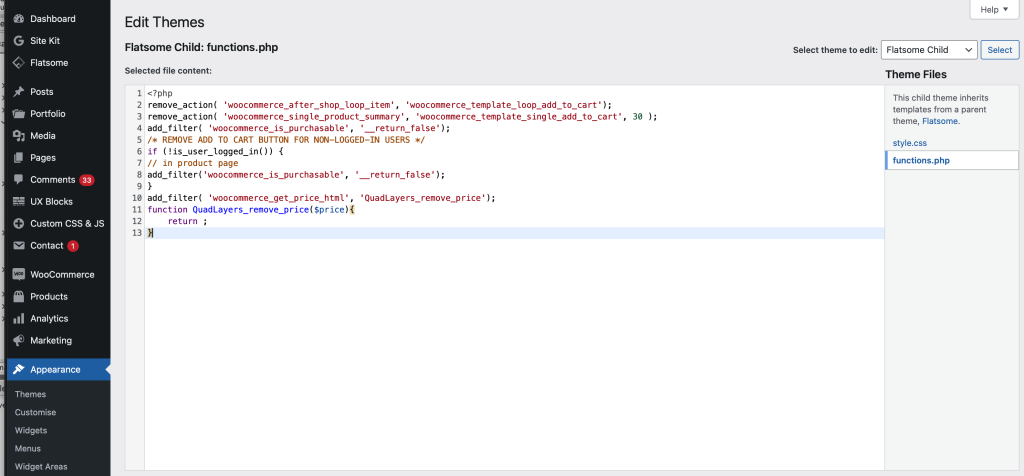
Now, we’ll have a look at some snippets. All you need to do is add them to the functions.php tab. You can access it from your WordPress dashboard under Appearance > Theme Editor > Theme Functions. Keep in mind that the theme files may be different depending on the WordPress theme you use but you should be able to follow the guide without any issues.
If you don’t have access to the theme files or don’t feel comfortable editing the files directly, you can add code to your theme or use dedicated plugins such as Code Snippets and Insert Headers and Footers.
1.1. Hide the “Add to Cart” Button
The first step to enable catalog mode in your WooCommerce store is to hide the “Add to Cart” buttons. To remove the button, simply use the following code snippet.
This will also replace the “Add to Cart” with a “Read More” button.
Hide Add to Cart for non-registered users
Another interesting alternative is to hide the “Add to Cart” button just for non-logged-in users. This way, only users who are registered will be able to see the “Add to Cart” button and purchase products. For this, use the following code snippet:
/* REMOVE ADD TO CART BUTTON FOR NON-LOGGED-IN USERS */
if (!is_user_logged_in()) {
// in product page
add_filter('woocommerce_is_purchasable', '__return_false');
}
These are just a few examples but there’s a lot more you can do. For more information and options to hide the “Add to Cart” button, check out our guides:
1.2. Hide Prices in your Store
After hiding the “Add to Cart” button, your next step would be to remove the price to enable catalog mode in WooCommerce. Similar to what we did before with the buttons, the process of hiding prices with code is very easy and can be done in several ways.
If you want to hide all the prices in your store, you can use the following snippet:
add_filter( 'woocommerce_get_price_html', 'QuadLayers_remove_price');
function QuadLayers_remove_price($price){
    return ;
}
But, if you want to display the prices for the admin and hide them from all the other website visitors, you can use the following snippet:
add_filter( 'woocommerce_get_price_html', 'QuadLayers_remove_price');
function QuadLayers_remove_price($price){
if ( is_admin() ) return $price;
    return ;
}
Additionally, you can also hide the prices of the products only on the shop page using this script:
add_filter( 'woocommerce_after_shop_loop_item_title', 'remove_woocommerce_loop_price', 2 );
function remove_woocommerce_loop_price() {
  if( ! is_shop() ) return; // Hide prices only on shop page
remove_action( 'woocommerce_after_shop_loop_item_title', 'woocommerce_template_loop_price', 10 );
}
Furthermore, there are many other ways in which you can remove prices from yo
On August 14, 2023, our Wordfence Threat Intelligence team identified and began the responsible disclosure process for a stored Cross-Site Scripting (XSS) vulnerability in LiteSpeed Cache plugin, which is actively installed on more than 4,000,000 WordPress websites, making it the most popular cache plugin. The vulnerability enables threat actors with contributor-level permissions or higher to inject malicious web scripts into pages using the plugin’s shortcode.
We contacted The LiteSpeed Cache Team on August 14, 2023, and we received a response on the same day. After providing full disclosure details, the developer team made a patch on August 16, 2023, and released it to the WordPress repository on October 10, 2023. We would like to commend the LiteSpeed Technologies for their prompt response and timely patch.
We urge users to update their sites with the latest patched version of LiteSpeed Cache, version 5.7 at the time of this writing, as soon as possible.
The LiteSpeed Cache plugin for WordPress is vulnerable to Stored Cross-Site Scripting via the ‘esi’ shortcode in versions up to, and including, 5.6 due to insufficient input sanitization and output escaping on user supplied attributes. This makes it possible for authenticated attackers with contributor-level and above permissions to inject arbitrary web scripts in pages that will execute whenever a user accesses an injected page.
Technical Analysis
The LiteSpeed Cache is a site acceleration plugin with server-level cache and optimization. It provides a shortcode ([esi]) that can be used to cache blocks with Edge Side Includes technology when added to a WordPress page, if ESI was previously enabled in the settings.
Unfortunately, insecure implementation of the plugin’s shortcode functionality allows for the injection of arbitrary web scripts into these pages. Examining the vulnerable code reveals that the shortcode method in the ESI class does not adequately sanitize the user-supplied ‘cache’ input, and then fails to escape the ‘control’ output derived from the ‘cache’ parameter when it builds the ESI block. This makes it possible to inject attribute-based Cross-Site Scripting payloads via the ‘cache’ attribute.
This makes it possible for threat actors to carry out stored XSS attacks. Once a script is injected into a page or post, it will execute each time a user accesses the affected page. While this vulnerability does require that a trusted contributor account is compromised, or a user be able to register as a contributor, successful threat actors could steal sensitive information, manipulate site content, inject administrative users, edit files, or redirect users to malicious websites which are all severe consequences.
With the growing number of security threats targeting WordPress sites, it’s crucial to prioritize the safety and performance of your website. While the LiteSpeed Cache vulnerability poses a significant risk, switching to a reliable and secure alternative like WP Rocket can safeguard your site and provide peace of mind. Take proactive steps to protect your digital presence and keep your website running smoothly.
On April 25, 2023, our team identified and began the responsible disclosure process for a stored Cross-Site Scripting (XSS) vulnerability in W3 Eden’s Download Manager plugin, which is actively installed on more than 100,000 WordPress websites, making it one of the most popular download management plugins. The vulnerability enables threat actors with contributor-level permissions or higher to inject malicious web scripts into pages using the plugin’s shortcode.
We contacted W3 Eden on April 25, 2023, and promptly received a response. After providing full disclosure details, the developer released a patch on May 1, 2023. We would like to commend the W3 Eden development team for their prompt response and timely patch.
We urge users to update their sites with the latest patched version of Download Manager, version 3.2.71 at the time of this writing, as soon as possible.
The Download Manager plugin for WordPress is vulnerable to Stored Cross-Site Scripting via the ‘wpdm_members’, ‘wpdm_login_form’, ‘wpdm_reg_form’ shortcodes in versions up to, and including, 3.2.70 due to insufficient input sanitization and output escaping on user supplied attributes. This makes it possible for authenticated attackers with contributor-level and above permissions to inject arbitrary web scripts in pages that will execute whenever a user accesses an injected page.
Technical Analysis
Download Manager is a plugin designed to allow WordPress users to manage, track and control file downloads. It provides a shortcode ([wpdm_members]) that lists the authors and the number of files they have added when added to a WordPress page. However, insecure implementation of the plugin’s shortcode functionality allows for the injection of arbitrary web scripts into these pages. Examining the code reveals that the members method in the User class did not adequately sanitize the user-supplied ‘sid’ input, and then loads the members.php view file, where it also did not adequately escape ‘sid’ output. This makes it possible to inject attribute-based Cross-Site Scripting payloads via the ‘sid’ attribute.
#image_title
There are two other shortcodes, a login form shortcode ([wpdm_login_form]) and a registration form shortcode ([wpdm_reg_form]), that add forms to a WordPress site. However, the insecure implementation of these two shortcode functions, similar to the previous example, also allows arbitrary web scripts to be inserted into these pages. Examining the code reveals that the functions of both forms do not adequately sanitize the user-supplied ‘logo’ input, and in the view files these ‘logo’ outputs are not adequately escaped.
These make it possible for threat actors to carry out stored XSS attacks. Once a script is injected into a page or post, it will execute each time a user accesses the affected page. While this vulnerability does require that a trusted contributor account is compromised, or a user be able to register as a contributor, successful threat actors could steal sensitive information, manipulate site content, inject administrative users, edit files, or redirect users to malicious websites which are all severe consequences.
Disclosure Timeline
April 25, 2023 – Wordfence Threat Intelligence team discovers the stored XSS vulnerability in Download Manager and initiates responsible disclosure. April 27, 2023 – We get in touch with the development team at W3 Eden and send full disclosure details. May 1, 2023 – The fully patched version, 3.2.71, is released. May 3, 2023 – The vendor notified Wordfence that they released the patch. May 3, 2023 – Wordfence confirms the fix addresses the vulnerability.
Conclusion
In this blog post, we have detailed a stored XSS vulnerability within the Download Manager plugin affecting versions 3.2.70 and earlier. This vulnerability allows authenticated threat actors with contributor-level permissions or higher to inject malicious web scripts into pages that execute when a user accesses an affected page. The vulnerability has been fully addressed in version 3.2.71 of the plugin.
We encourage WordPress users to verify that their sites are updated to the latest patched version of Download Manager. Is your site using W3 Eden’s Download Manager plugin? A critical XSS vulnerability was recently patched, but you must act fast to secure your site. If you’re unsure how to update or need immediate assistance, let us handle it. Click here to access our Quick Fix service and protect your site from potential threats today!
There are several benefits to having dedicated WordPress website hosting:
Speed and Performance: Dedicated WordPress hosting provides faster website load times, as the hosting environment is optimized specifically for WordPress sites. This results in a better user experience and can improve your search engine rankings.
Security: With dedicated hosting, your site is less vulnerable to security threats and hacking attempts. Dedicated WordPress hosting providers typically offer enhanced security features such as malware scanning, automatic backups, and regular software updates.
Customization: With dedicated hosting, you have more control over your server environment, allowing you to customize your site’s settings and optimize its performance to meet your specific needs.
Scalability: Dedicated WordPress hosting can easily accommodate high traffic spikes, ensuring that your site remains accessible and responsive even during peak periods.
Technical Support: Dedicated WordPress hosting providers typically offer specialized technical support, with experts who are knowledgeable in WordPress-specific issues and can provide assistance quickly and efficiently.
Backup and Recovery: Dedicated WordPress hosting providers often offer regular backups of your site’s data, which can be crucial in the event of a website crash or data loss.
Overall, dedicated WordPress hosting can provide improved website performance, security, customization, scalability, technical support, and backup and recovery options.
To run WordPress on a web hosting server, it is recommended to meet the following minimum server requirements:
PHP version 7.4 or greater: WordPress recommends running the latest stable version of PHP for improved performance and security. We use PHP 8.0 as it’s a major update of the PHP language. It contains many new features and optimizations including named arguments, union types, attributes, constructor property promotion, match expression, nullsafe operator, JIT, and improvements in the type system, error handling, and consistency.
MySQL version 5.6 or greater OR MariaDB version 10.1 or greater: These are the two most commonly used database systems for WordPress, and the database stores all the content and settings of your website.
HTTPS support: HTTPS is a secure protocol that encrypts data between the server and the user’s browser, and it is essential for securing your website.
Apache or Nginx server: Apache and Nginx are the two most commonly used web servers for WordPress hosting. Apache is the most popular web server on the internet, while Nginx is known for its high-performance capabilities.
Minimum disk space of 1GB: You will need enough disk space to store your WordPress files, themes, and plugins.
In addition to these requirements, our server configuration is optimized for WordPress. This includes caching mechanisms, PHP accelerators, and other optimizations that improve the performance and security of your website. We offer WordPress-specific hosting plans for Basic WordPress Website and WordPress E-commerce site that come preconfigured with these optimizations.
We use cookies and similar technologies to improve your experience on our website.
Read our Privacy Policy.